Hello friends,
My mentality is, and always has been, to make it as easy as possible for you to access the tools and websites you use the most. AI assistants like ChatGPT, Claude, Perplexity, and Gemini are now obviously essential.
There is a slight complexity with the combining AI with a search bar here, because each AI assistant (LLM) handles search differently (for now!). So, I'll walk you through the ideal setup on Best Homepage Ever to help you incorporate both AI and/or traditional Search properly to suit your needs.
Using the Search/Chat Bar Effectively on Your Homepage
This guide will help you use the hybrid bar how you want to use it. Catered to what you use the most, and how much you prefer search or A.I.
The search bar has two menus: the left dropdown (your default search or AI engine) and the right button (your AI assistant shortcut).
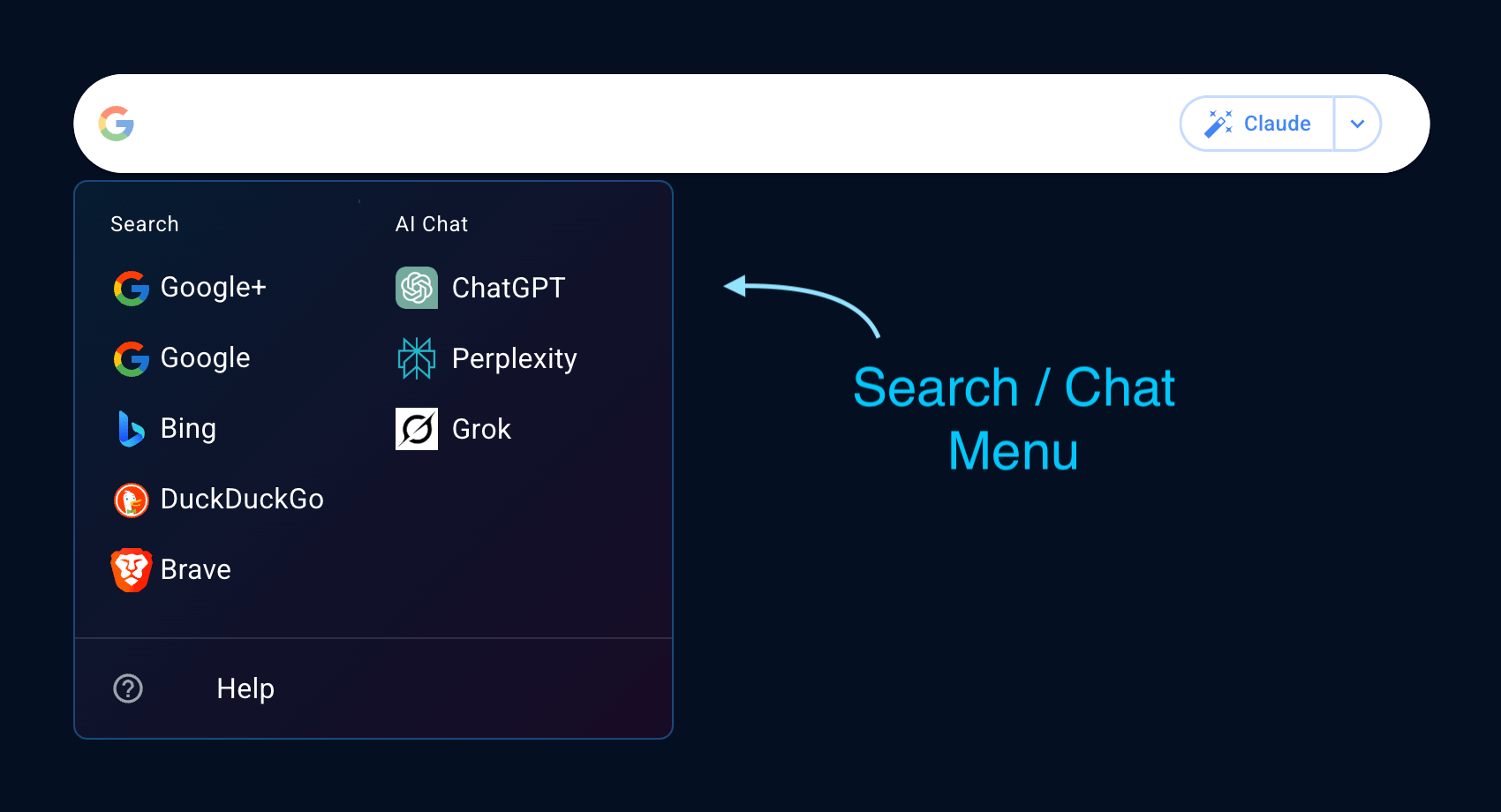
Primary search / chat selection. Click ENTER to submit
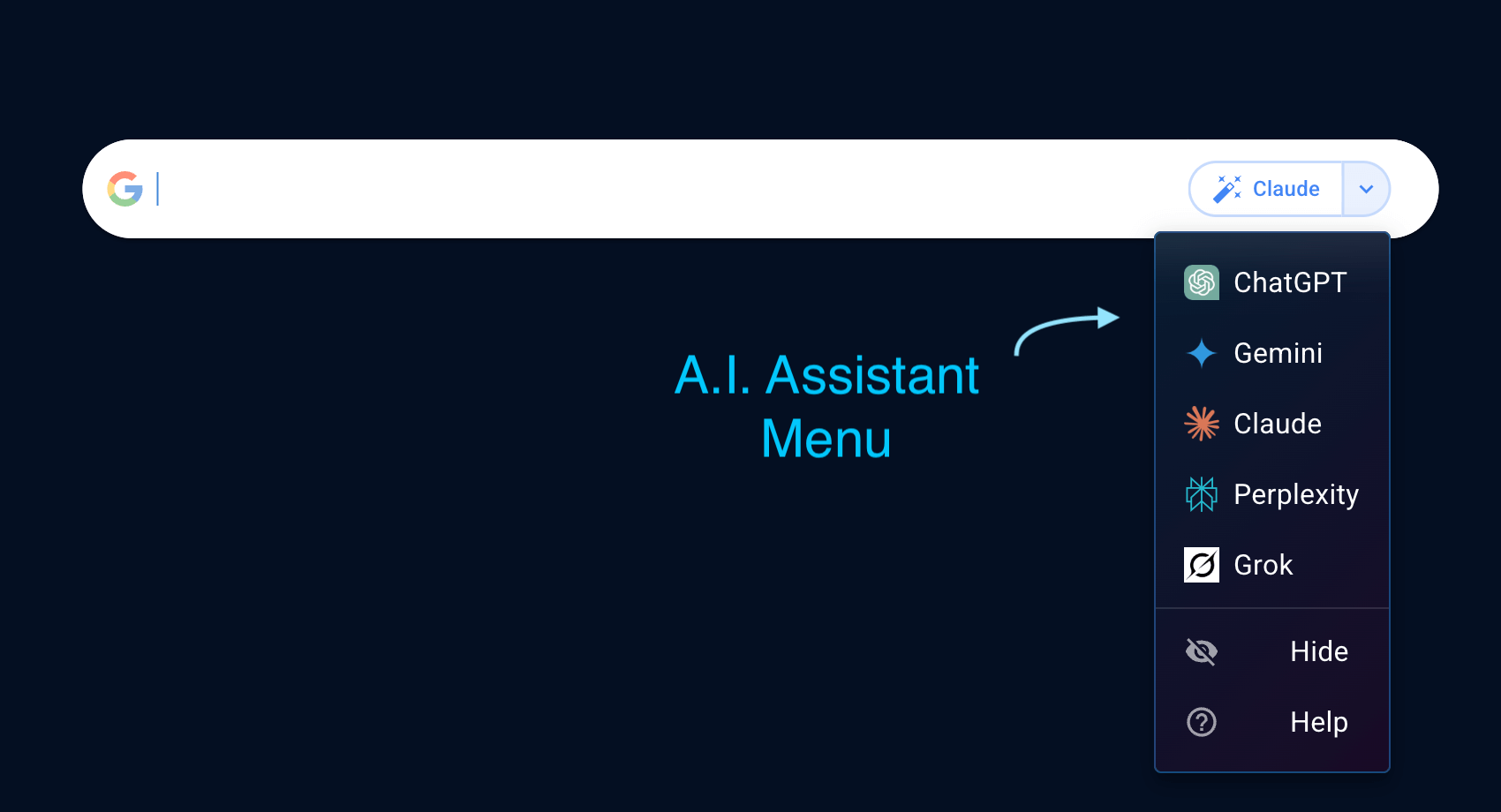
Your A.I. Assistant - click button to chat and ask questions.
Decide which setup you prefer, based on what you use
In the below example, I've chosen to use Google as my search engine, and Claude as my AI Assistant.

In this example, click ENTER to submit to Google. Click the Claude assistant button to start a chat.
Clicking ENTER always uses the primary (left) selection
After typing your search or question, pressing Enter always triggers whatever is selected in the left dropdown. The right AI button is only activated by clicking it directly.
You can hide the AI chat button if you don't need it
If you already use Perplexity, ChatGPT, or Grok as your default engine on the left, you may not need the AI assistant button on the right at all. You can hide it from the dropdown to keep the search bar clean. Of course, you can also keep it visible if you want quick access to a different AI service.
Choosing the right setup
While building this feature, I discovered that not all AI services work the same way when you try to link to them from a website. Some allow you to pass your text from the Search bar through to the URL (which means your query gets pre-filled automatically), some don't.
I've tested all the major AI LLM's to figure out which ones support URL parameters and which ones don't, so you can choose the best search / AI assistant setup.
| AI Service | Account Needed? | Reads Search Bar Text | Usability / Behavior |
|---|---|---|---|
 ChatGPT
|
Yes | Reads search bar text + ENTER | |
 Perplexity
|
No (optional) | Reads search bar text + ENTER | |
 Google Gemini
|
Yes | AI Assistant button begins chat | |
 Claude
|
Yes | AI Assistant button begins chat | |
 Grok (xAI)
|
No | Reads search bar text + ENTER |
Summary of using the AI Assistant on BHE
This table spells out my research, and why you're only going to see Grok, Perplexity, and ChatGPT in the left menu of the search bar. Those allow you to pass through the text and hit ENTER to immediately start chatting with AI.
If you prefer to use Claude or Gemini, then add those as your AI assistants (right side button), and you're just a click away from chatting.
Any text you write or speak will NOT be passed through to Claude or Gemini. Use the AI assistant button.
Expanded Visibility for Prompts
As more people use the search bar for AI prompts and detailed questions, I noticed that longer text would scroll off-screen, hiding the beginning of your question. Now, the search bar automatically expands to show your full text across multiple lines, so you can always see exactly what you're asking.

The search bar grows to fit your full question, keeping the AI assistant button centered.
Which combination should I use?
Everyone is different, but you can now do any of the following:
-
Search / AI combo (this is what I use)
Traditional search on the left and an AI assistant on the right. Best for people who still rely on search but want quick AI access.
-
AI / AI Combo
If you find yourself hardly searching anymore, go with the AI combo. Great if you prefer AI-first answers and want a second opinion from another model.
-
AI Only (no assistant)
Set an AI service as your primary on the left and hide the assistant button entirely. Clean and simple if one AI does everything you need.
-
Search (no AI assistant)
Traditional search only, no AI button. If you prefer the classic experience or access AI separately from other parts of the homepage, this keeps your search bar sleek and minimal.
Frequently Asked Questions
How do I enable the AI assistant button on my search bar?
Open your homepage settings by clicking the gear icon, then toggle on "Show AI Assistant". This adds the AI button to the right side of your search bar. From there, click the dropdown arrow next to the button to choose your preferred assistant: ChatGPT, Claude, Gemini, Perplexity, or Grok.
Can I use a different AI for the button and the search bar?
Yes! The left dropdown and the right AI button are completely independent. For example, you could set Google as your default search engine on the left while using ChatGPT as your AI assistant on the right. Or set Perplexity on the left for quick AI answers via Enter, and keep Claude on the right button for longer conversations.

Doubling down on AI. and Grok for longer Chats
Which AI services can I use without creating an account?
Perplexity and Grok both work without any account. You can type a question and get an answer right away. ChatGPT, Claude, and Gemini all require you to sign in before you can use them.
Reminder
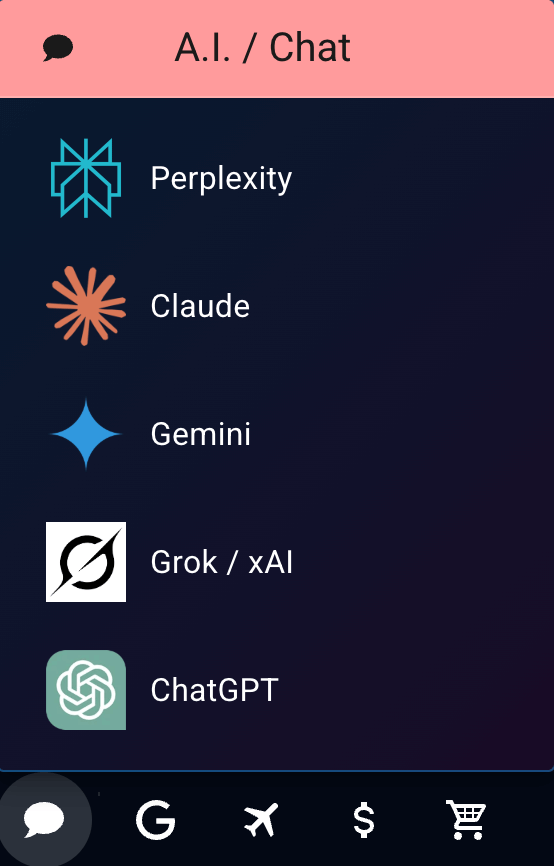
Remember, you can always access AI services through the footer of your homepage. And, if you no longer need these listed here, you can hide this icon in the footer display settings.