Hey all,
One of my favorite features on Best Homepage Ever is the AI Background Creator. You write a quick description of what you'd like to see, and a few seconds later you have a 4K background that's yours and yours alone, ready to apply with one click.
This guide walks through the whole flow: where to find it, how to write prompts that turn out well, how to manage your gallery, and how to share your best generations with the rest of the community. And if you'd rather your wallpaper actually move, take a look at my animated homepage backgrounds, which are short, seamlessly looping video scenes you can switch on with a single click.
Opening the AI Background Creator
The creator lives inside the same Backgrounds dialog you already use to pick wallpapers.
Make sure you're signed in
The AI Create tab only appears for signed-in accounts, so each person's gallery and generation count stays tied to their profile.
Open the Backgrounds dialog
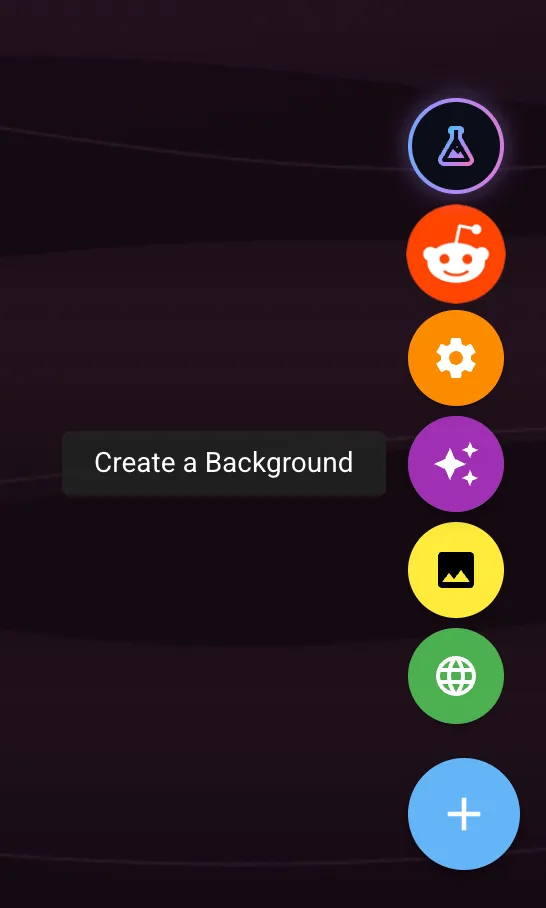
You can get there a few ways: the gear icon, the floating "+" button on the homepage, or the Backgrounds entry in the menu drawer. They all open the same dialog.
Click the AI Create tab
It's the right-most tab in the row of background categories, with a magic wand icon. The dialog opens to the Create New view by default.
Generating your background
Three simple inputs, one button. The whole thing takes about ten seconds end to end.
Write your prompt (50-4,000 characters)
Describe what you want to see. The more sensory detail you give (subject, setting, lighting, mood, color palette, art style), the better your odds of getting back something you'll love first try.
I keep prompts that violate community guidelines (NSFW, violence, hate, public-figure likenesses) blocked at the input stage, so you'll get a clear error before any credits are spent.
Pick an aspect ratio
Four options: 1:1 square, 4:3 standard, 16:9 widescreen, and 21:9 ultrawide. The one that best matches your screen is auto-tagged with a Recommended chip; when in doubt, just pick that.
Choose image quality (2K or 4K)
4K is the default and what I'd recommend for anything you might keep around; it stays crisp on big monitors. 2K is there if you're on a smaller display and want a slightly faster generation.
Click Generate Background
The button shows a "Generating..." state for around ten seconds. When the result comes back, you'll see a preview with two buttons: Set as Background applies it to your homepage immediately, and the result is automatically saved to your gallery either way.
Tips for prompts that turn out well
You don't need to be a prompt engineer. Just remember that the model can only render what you describe: vague in, vague out. Compare these two:
"A nice mountain"
"A snow-capped mountain at golden hour, low mist drifting through an evergreen valley below, soft alpenglow on the peak, painted in the style of a Studio Ghibli film, ultra-wide cinematic composition"
A few useful ingredients to mix in:
- Subject: what's actually in the scene, like a coastal cliff, an empty diner, or a galaxy
- Setting / time: dusk, midnight, foggy morning, blue hour, neon-lit rainy street
- Mood: serene, dramatic, cozy, melancholy, nostalgic
- Style: photorealistic, oil painting, anime cel shading, watercolor, low-poly 3D
- Composition: wide aerial shot, top-down, eye level, looking up; this guides what the AI puts in frame
Sharing your favorites with the community
If you make something you're proud of, you can publish it to the Community Favorites tab so other Best Homepage Ever users can use and like it. Sharing is completely optional, but it's how the Community Favorites tab grows, so if you've made something good, please consider passing it along.
Open the Gallery tab
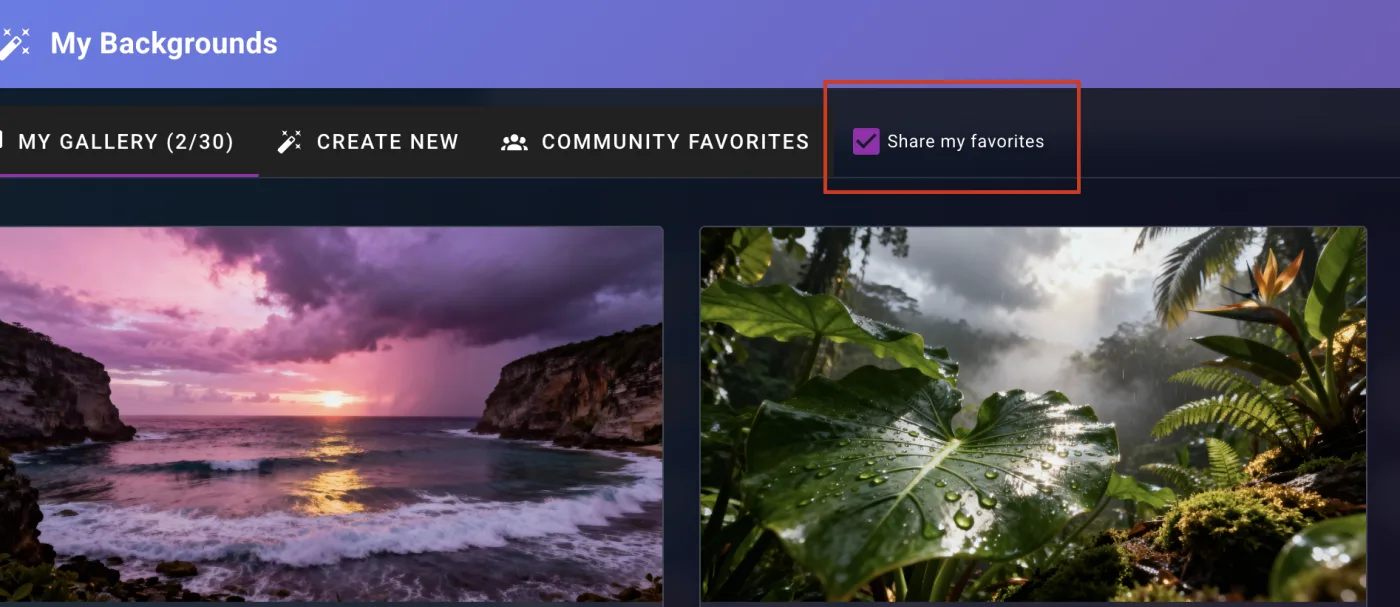
Inside the AI Background Creator, switch to Gallery. You'll see every background you've generated, newest first.
Agree to share, just once
The first time you share, you'll be asked to check "Share my favorites", a one-time consent that confirms you're okay with the community using and re-applying your background. After that you don't have to see it again.
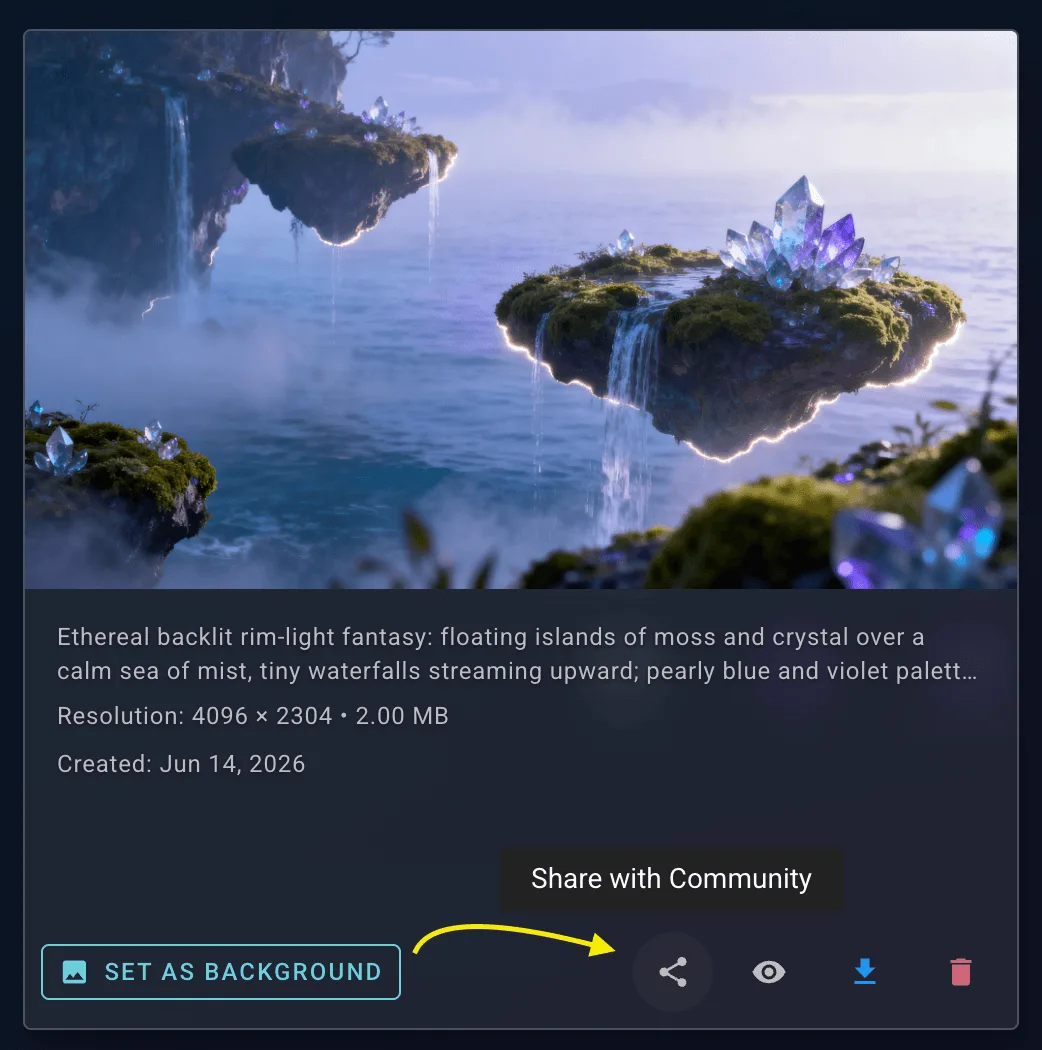
Click the share icon on the background
Each gallery item has a Share with Community icon button. Click it and the background flips to a purple Shared chip so you know it's published. To pull it back, click the close icon next to the chip and the background goes private again.
See it in Community Favorites
Switch to that tab and you'll find every shared background, sortable by Top Rated (default) or Most Recent. Each card shows the creator, like count, and three buttons: Use as Background, like / unlike, and preview.
Generations, gallery, and credits
The creator dialog has three tabs: Create New, Gallery, and Community Favorites. Your Gallery is where every background you generate is auto-saved.
| Account type | Free generations | Gallery slots | Sharing |
|---|---|---|---|
| Free | 6 included, more available as paid credits | 6 | Up to 3 per 30 days |
| PRO | Unlimited | 30 | Unlimited |
When the gallery fills up, the creator stops you with a friendly message; just delete one you no longer want, or upgrade for the larger limit. Generation is also rate-limited to 5 requests per hour per account so a single tab can't accidentally burn through credits.
Frequently Asked Questions
What if I don't like the result?
Just delete it from your gallery and try again. Adjusting one element of the prompt at a time (the lighting, the style, the composition) is usually how I dial in something I love. Deleting also frees up a gallery slot if you're at the limit.
Can I unshare a background after publishing it?
Yes. In your Gallery tab, click the close icon next to the purple Shared chip on the background. It's pulled from Community Favorites immediately and goes back to being private to your account.
Why does sharing have a 3-per-30-days limit on free accounts?
It keeps the Community Favorites tab focused on the best work from the most people, instead of being dominated by a few accounts. The cap rolls forward: every 30 days, your oldest shares free up new slots automatically. PRO members aren't capped because their generation volume is also unlimited.
Do I own the backgrounds I generate?
You can use anything you generate as your personal homepage background, no questions asked. If you choose to share, you're granting other BHE users permission to use it as their background too. For anything beyond that, like printing, redistribution, or commercial work, please check the AI provider's license, which can shift over time.
How do I report an inappropriate community background?
Send me a quick note via the Help page. Banned-words filtering blocks most problem prompts at the input stage, but if anything sneaks through I'll remove it fast.
Now go make something cool!
The whole reason I built this was so my homepage could feel personal, not pulled from a stock library. I'd love to see what you come up with, and if you make something especially great, please share it. The community gallery gets better every time someone new contributes.