
PinDrop is a powerful extension that lets you save content from anywhere on the web directly to your Best Homepage Ever Snippets vault. Save articles to read later, capture recipes without the ads, screenshot any part of a page, and more.
Save Content in Multiple Ways
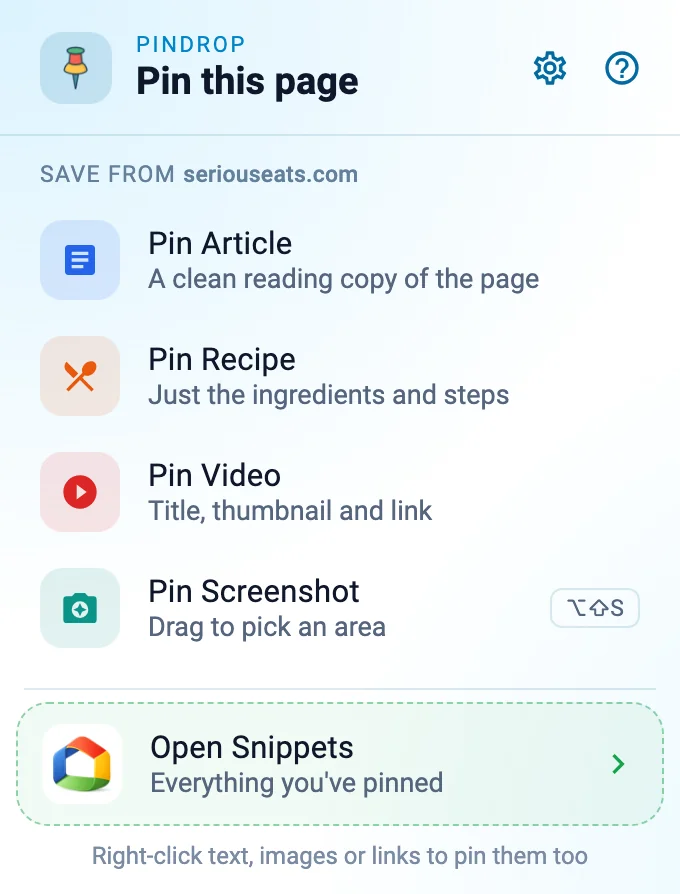
Click Extension Icon
Pin articles, recipes, videos, and screenshots from the popup.
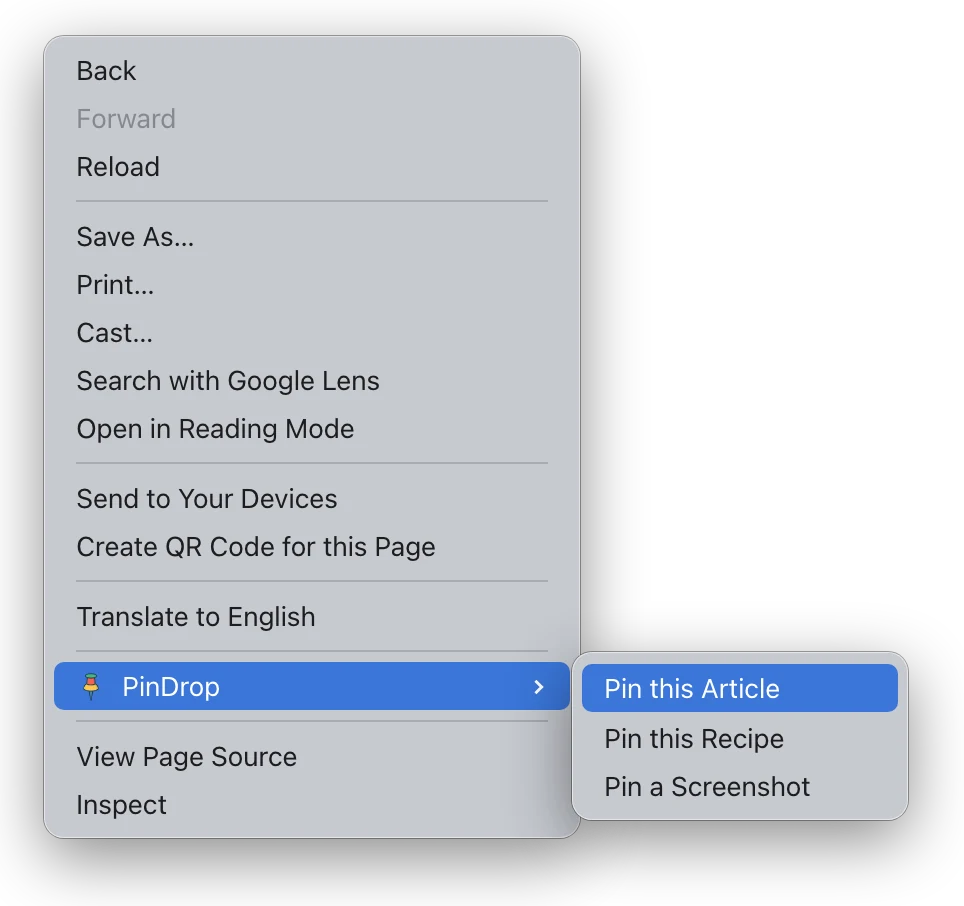
Right-Click to Save
Right-click on any page, image, link, or selected text to save it instantly. A message at the top of the page confirms each save.
What's New
New in version 1.3Right-click a photo in WhatsApp Web, or on any site that keeps its images inside the page, and choose Pin this Image.
Steps, times and servings now come through from AllRecipes, Serious Eats, Simply Recipes, EatingWell and more, with tidier ingredient lists.
Pin Article on a page that isn't an article, like a shop or download page, saves it as a link instead of showing an error.
When something can't be saved, PinDrop now tells you why.
Screenshot Any Area
- Click Pin Screenshot in the PinDrop menu, choose "Pin a Screenshot" when you right-click a page, or press Alt+Shift+S (Option+Shift+S on a Mac).
- Drag a box around the part of the page you want. Press Enter to capture the whole visible page instead, or Esc to cancel.
- The screenshot goes straight to your Snippets, and a message at the top of the page confirms it was saved.
Make it yours
Prefer the whole screen every time? Open PinDrop's Settings (the gear at the top of the menu) and choose Whole view. The button, the right-click menu and the shortcut all follow that choice.
To change the shortcut, select Change next to it in Settings, or open
chrome://extensions/shortcuts (in Edge, edge://extensions/shortcuts).
In Firefox, open Add-ons and themes, select the gear, then Manage Extension Shortcuts.
In Safari on a Mac, the shortcut is Option+Shift+S.
What You Can Save
Read later
No ads!
From any site
Any area
YouTube & more
Save selections
Where do I access my Snippets?
Access all of your Snippets in the "Snippets" section of your homepage footer.
Help & Troubleshooting
Using PinDrop in Safari on a Mac
PinDrop for Safari comes in my free Best Homepage Ever app on the Mac App Store, together with Portal.
- Don't see PinDrop in Safari? Safari installs extensions turned off. Open the Best Homepage Ever app and follow its setup, or choose Safari → Settings → Extensions and tick PinDrop.
- It says you're not signed in? PinDrop needs access to besthomepageever.com to pick up your sign-in. When Safari asks, choose Always Allow on Every Website and confirm it, then reload your homepage. If you chose a shorter option before, open Safari → Settings → Websites, choose PinDrop under Extensions at the bottom of the list, and set For other websites to Allow.
- Stopped working after an update? The app updates through the App Store. Quit Safari and open it again, then check that PinDrop is still ticked in Safari → Settings → Extensions.
- Does the app need to stay open, or in the Dock? No. Once PinDrop is turned on, quit the app whenever you like; Safari runs the extensions on its own. Keep the app in your Applications folder, though: deleting it removes PinDrop and Portal from Safari.
PinDrop says I'm not signed in
PinDrop automatically connects when you visit Best Homepage Ever while signed in. Try these steps:
- Make sure you're signed in to Best Homepage Ever
- Visit the homepage (besthomepageever.com)
- The extension should automatically detect your login
- Click the PinDrop icon to verify you're connected
If a save fails with "Open Best Homepage Ever to reconnect PinDrop", your sign-in has expired. Open your homepage once, then try again.
The screenshot shortcut doesn't work
-
If another extension already uses Alt+Shift+S, your browser leaves PinDrop's shortcut blank.
Set different keys at
chrome://extensions/shortcuts(Edge:edge://extensions/shortcuts; Firefox: Add-ons and themes → gear → Manage Extension Shortcuts). - On a Chromebook, Alt+Shift+S belongs to the system, so pick different keys there.
- You can always start a screenshot from the PinDrop menu instead.
"PinDrop can't save from this page"
Browsers don't let extensions work on their own pages, such as Settings and other
chrome:// or edge:// pages, the extension stores, and the built-in PDF viewer.
PinDrop can't save from those or take screenshots of them ("PinDrop can't take screenshots of this page").
Everything works on regular websites.
"No recipe found on this page"
PinDrop looks for structured recipe data (Schema.org format) that most recipe websites use. If you see this error:
- The page may not have recipe markup - try "Pin Article" instead
- Some sites use non-standard formats that can't be extracted
- Pin Article will save the full page content as a readable article
"No video found on this page"
PinDrop can detect videos from YouTube and other major platforms. If you see this error:
- Make sure you're on the actual video page (not a search results page)
- Some embedded videos may not be detected
- "Pin this Video" shows in the right-click menu on YouTube and Vimeo, or when you right-click a video. On other sites, use Pin Video in the PinDrop menu
- Try using "Pin Screenshot" to capture the video thumbnail instead
"This page isn't an article, so I saved it as a link"
Pin Article looks for the main block of writing on a page. When it can't find one, PinDrop saves the page as a link in your Snippets instead, with its title and picture. This happens when:
- The page has little writing, like a shop, download or sign-in page
- The page requires login or has a paywall
- The page structure is unusual
Try "Pin Screenshot" to keep a visual copy of the page as well. Versions before 1.3 showed "Could not extract article content" here instead.
An image won't save
PinDrop shows the reason at the top of the page. The usual ones:
- "Could not download the image": the site doesn't allow its images to be copied. Try "Pin Screenshot" instead
- "That file is not an image": for images kept inside the page, like WhatsApp's, PinDrop saves JPEG, PNG, GIF and WebP
- "This image is too large to save": images up to about 9 MB can be saved
Extension not working after update
If PinDrop stops working after a browser or extension update:
- Go to
chrome://extensions - Find PinDrop and click the refresh icon
- Visit Best Homepage Ever to re-authenticate
- If issues persist, try removing and reinstalling the extension
In Safari, see Using PinDrop in Safari on a Mac above.