What is Safari's homepage, exactly?
When people say "Safari homepage," they usually mean one of three things. Safari treats them as separate settings, which is where most of the confusion comes from.
-
The Homepage setting.
A web address you choose. Safari opens it when you press the
Home button, choose History › Home, or press
Shift-Command-H. On my Mac it pointed to
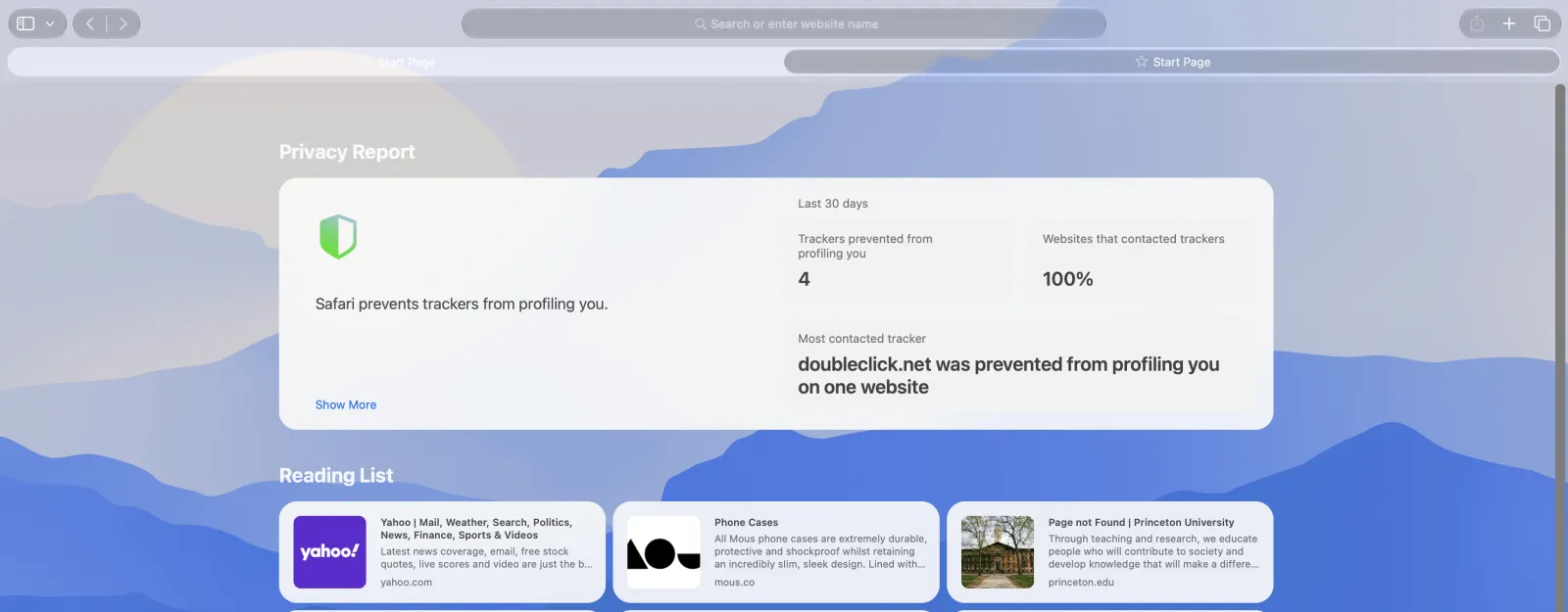
https://www.apple.com/startpage/before I changed it. - The Start Page. Apple's built-in page with your Favorites, Privacy Report, Reading List, and Suggestions over a background image. It's part of Safari itself, so there's no address to copy or share.
- What new windows and tabs show. Two menus decide whether a fresh window or tab gets the Start Page, your Homepage, an empty page, or a copy of the page you were on.
Out of the box, new windows and new tabs both show the Start Page. That's why a lot of people think the Start Page is the Safari homepage, and for most Mac users it effectively is.
How do I set a homepage in Safari?
Pick your device. On a Mac it takes about a minute.
On a Mac
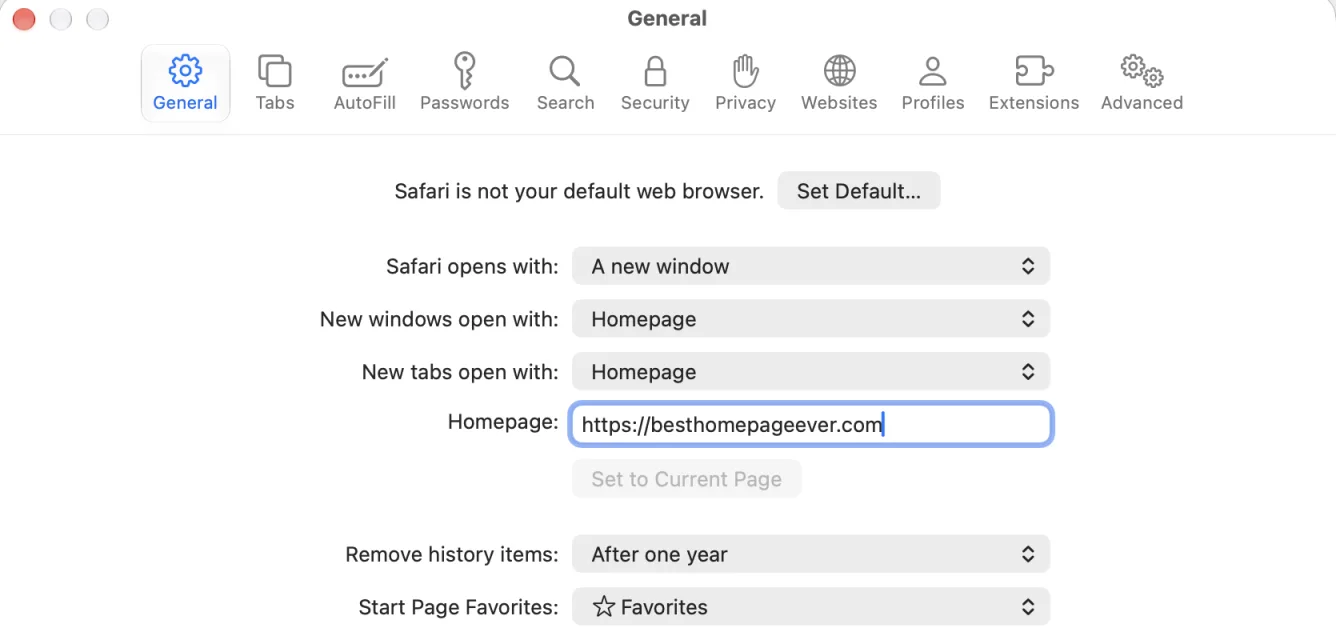
- Open Safari and choose Safari › Settings from the menu bar (or press Command-comma).
- Click General.
-
In the Homepage field,
type the address you want. If you already have the page open,
click Set to Current Page
instead.
Using mine?
https://besthomepageever.com - Set New windows open with to Homepage.
- Set New tabs open with to Homepage.
- Close Settings and press Command-T. Your homepage should load in the new tab.
Want a Home button too? Choose View › Customize Toolbar and drag the house-shaped Home button onto the toolbar. It's hidden by default, but it's handy if you set new tabs to something other than your homepage.
On iPhone and iPad
Safari on iPhone and iPad doesn't have a homepage setting. There's no field to type an address into. You can still get close, and here are the three ways I'd do it.
Why does Safari still open the Start Page after I set a homepage?
This is the question I see most, and it's almost always one of these.
New tabs are still set to Start Page
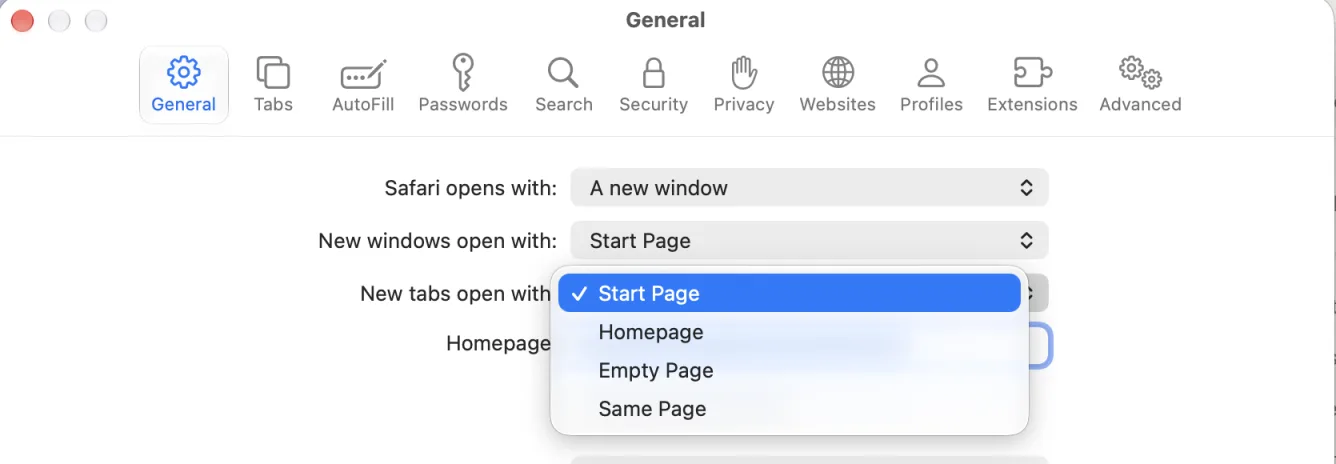
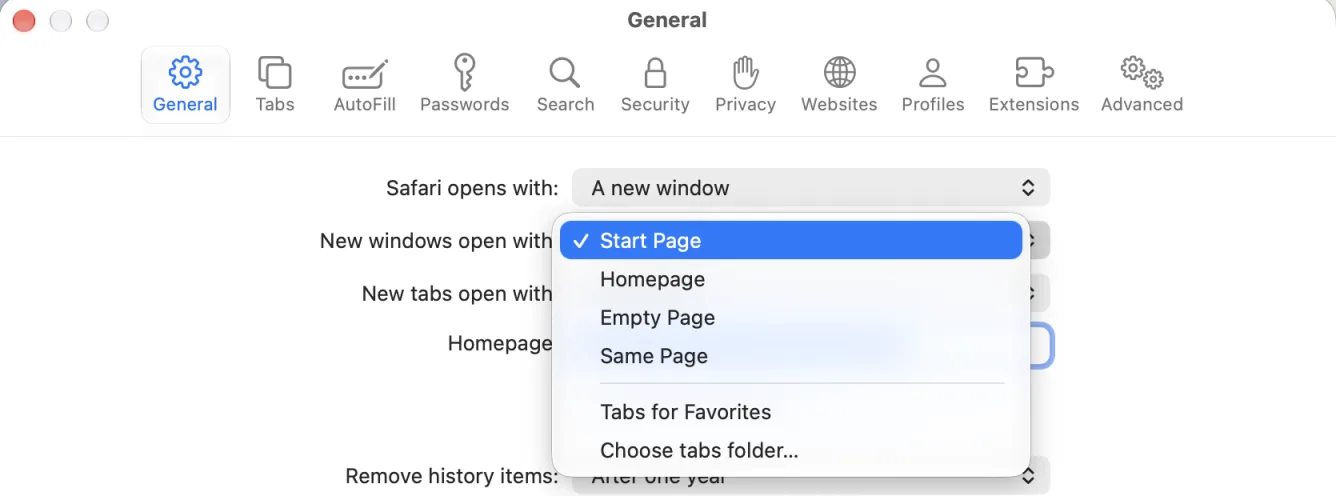
The Homepage field on its own only controls the Home button. New tabs follow their own menu, which has four choices. Pick Homepage.
New windows have a couple of extra choices
New windows get the same four options plus two more. Tabs for Favorites opens every site in your Favorites as its own tab, and Choose tabs folder does the same for any bookmarks folder you pick. Those are nice for a morning routine, but if you want one homepage, choose Homepage.
Safari is restoring your last session
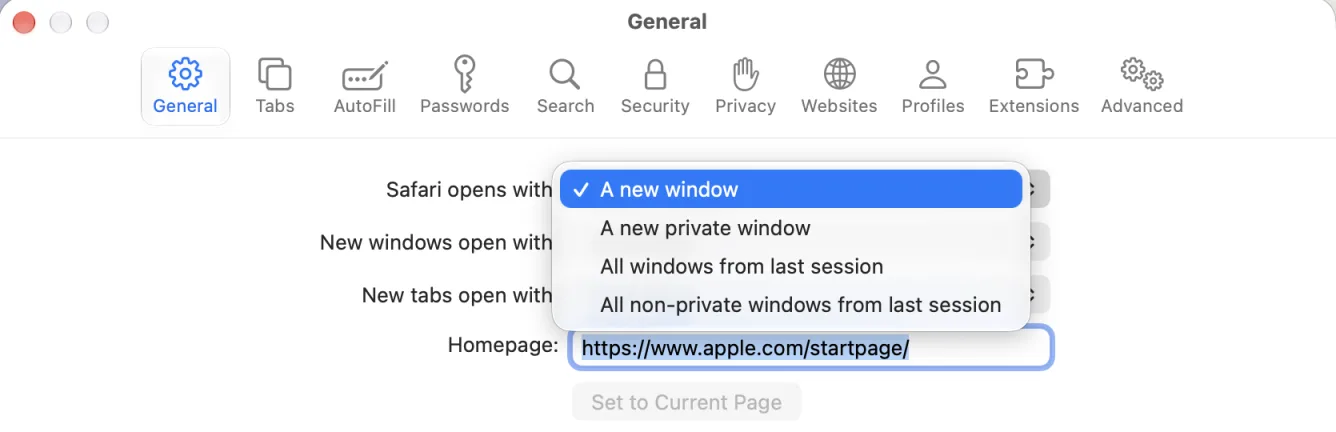
The Safari opens with menu decides what you see after you quit and reopen Safari. Set to All windows from last session, you get your old tabs back instead of your homepage. That's a great feature if you like picking up where you left off. If you'd rather start fresh, choose A new window.
You're in a different profile
If you use Safari Profiles (Settings › Profiles) to keep work and personal browsing apart, each profile has its own choices for new windows and tabs. Check the profile you're actually in.
Your Mac is managed, or an extension took over
If the menus are greyed out, your Mac is probably managed by an employer or school, and they've set it for you. If your homepage keeps switching to a site you didn't choose, look in Safari › Settings › Extensions for anything you don't recognize and turn it off.
Does Safari on iPhone and iPad have a homepage?
No. Safari on iPhone and iPad doesn't have a homepage setting. When you open Safari, you land on the tabs you left open. When you open a new tab, you get the Start Page.
I actually think that's the right call for a phone. Most of the time you want to pick up where you left off, not start over. But if you want one page you can reach in a single tap, here are three ways to get there.
1. Put it in Favorites and turn Favorites on
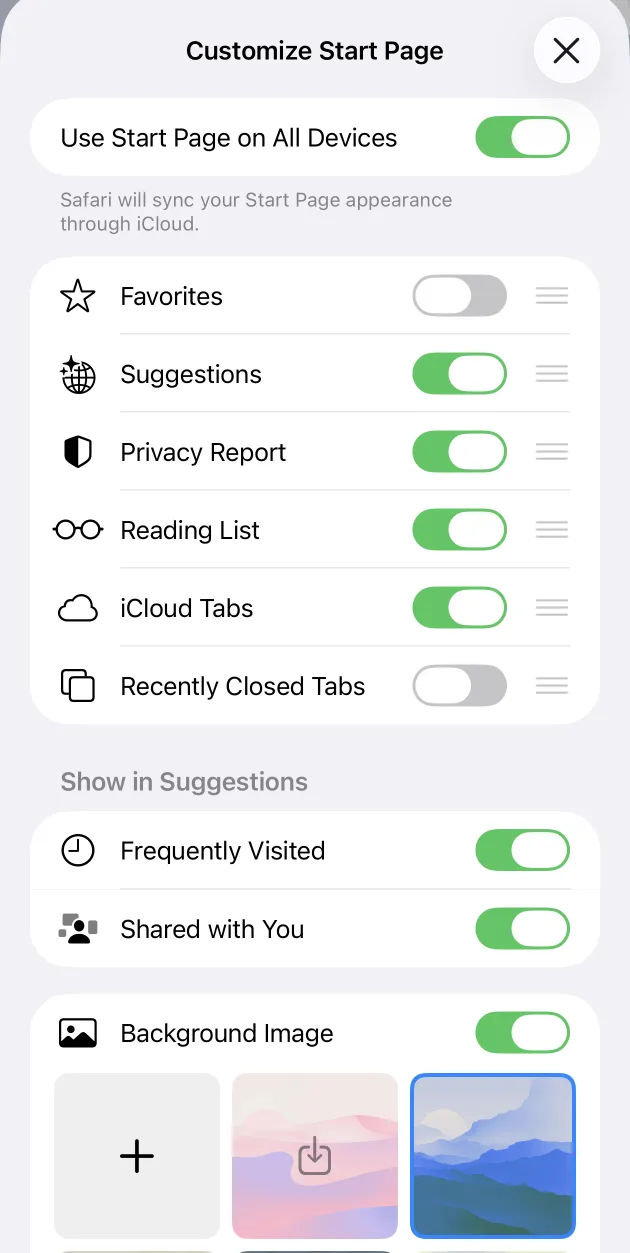
Open the page, tap the Share button, and tap Add to Favorites. Then open a new tab, scroll to the bottom of the Start Page, tap Edit, switch on Favorites, and drag it to the top of the list. Every new tab now starts with your homepage one tap away.
2. Add it to your Home Screen
Open the page, tap Share, then Add to Home Screen. It gets its own icon next to your apps. My homepage is built as a web app, so when you open it from that icon it fills the whole screen without Safari's address bar, like any other app.
3. Try a new-tab extension
A few App Store extensions add the missing setting by loading an address you choose on every new tab. Homepage for Safari is one. It's free and made by an independent developer, not by me. I haven't tested it yet, so treat it as untested.
What does Safari's Start Page do well?
Before you replace it, it's worth knowing what you'd be giving up, because Apple got a lot right here.
Privacy you can see. Safari blocks cross-site trackers by default, and the Privacy Report shows the results right on the page. In my Start Page screenshot near the top of this guide, it had stopped 4 trackers in the last 30 days, and the most-contacted one was doubleclick.net.
Picking up where you left off. If you're reading an article on your iPhone during lunch, iCloud Tabs and Reading List make it easy to continue right where you stopped when you sit down at your Mac. That cross-device continuity is one of Safari's best features, and it's actually what inspired me to build a way to save articles, recipes, and videos into my own homepage.
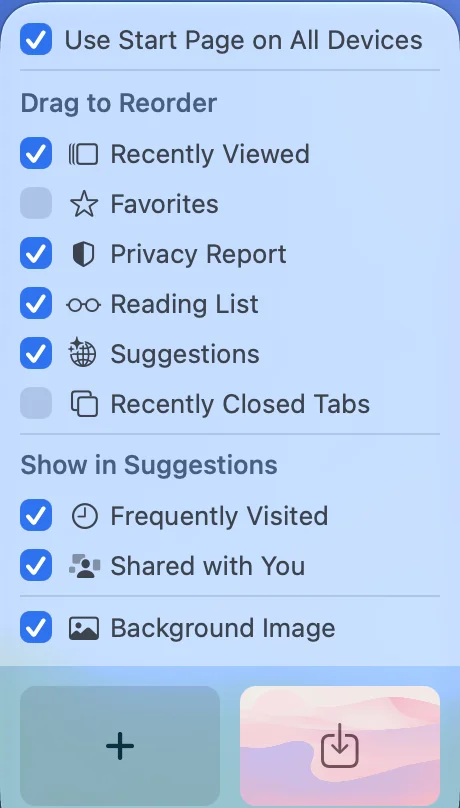
It follows you across Apple devices. Turn on Use Start Page on All Devices and Safari syncs the Start Page's look through iCloud, so your Mac, iPhone, and iPad all match.
It's yours to rearrange. You can switch sections on and off, drag them into a different order, and pick a background from Apple's set or use your own photo.
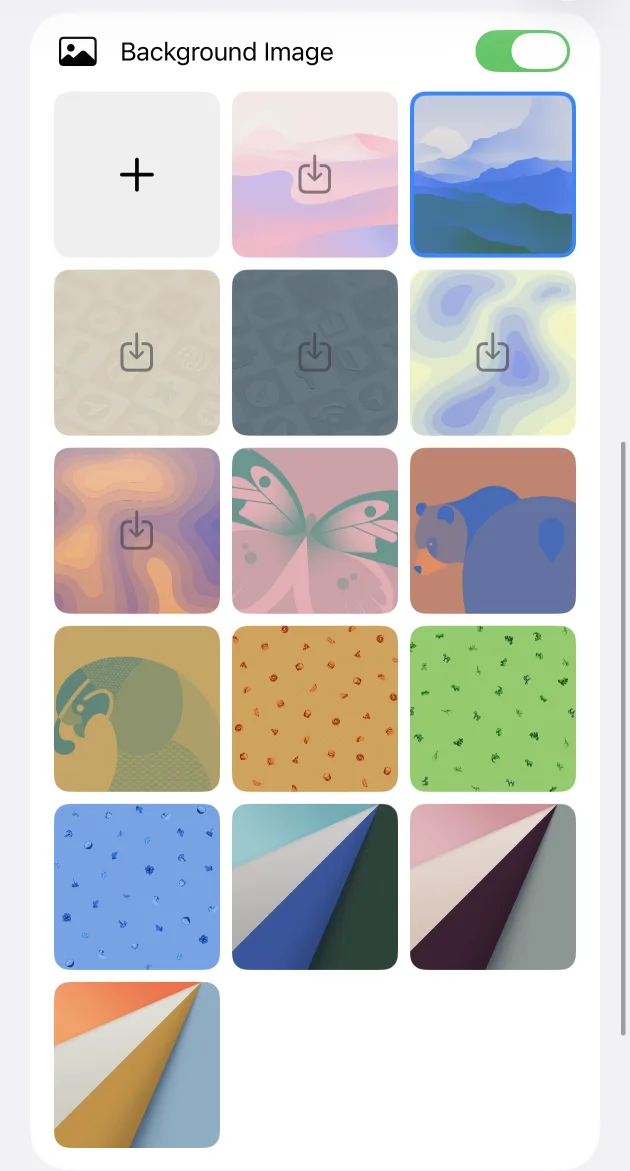
Where it stops. The Start Page is a board of Apple's sections, not a page you build. You can't add sections of your own, group links into categories like News or Work, put the weather or your notes on it, or open it in Chrome or Edge on a work computer. If none of that matters to you, keep the Start Page. Seriously, it's good.
What should I set as my Safari homepage?
It comes down to where you browse and what you want waiting for you. Here's how the three most common choices compare.
| Feature | Safari's Start Page | A single site (like Google) | Best Homepage Ever |
|---|---|---|---|
| Your links, grouped your way | Favorites | No | Yes, in tabs like News, Sports, and Work |
| Weather, notes, and tasks on the page | No | Depends on the site | Yes |
| Reading List and iCloud Tabs | Built in | No | No |
| Works in Chrome, Edge, and on Windows | No, Apple devices only | Yes | Yes, sign in anywhere |
| Ads on the page | None | Often | None |
| Setup | Nothing to do | Type one address | Type one address, then add your sites |
The setups I'd recommend
- If you love Reading List and iCloud Tabs: set New windows to Homepage and leave New tabs on Start Page. Your homepage greets you when you sit down, and Apple's Start Page is still one Command-T away.
- If you want your homepage everywhere: set both New windows and New tabs to Homepage, and add it to your iPhone's Home Screen.
- If you want nothing at all: set New tabs to Empty Page. It's the fastest, calmest option Safari has.
Why I built my homepage with Safari users in mind
I've run a homepage since 1999, and I pretty much live in Apple's ecosystem. One thing I've always liked about Safari is that it's unbiased. Apple doesn't compete for your traffic the way Google or Microsoft do. Apple isn't selling Apple here; it leaves the choice of what you see up to you.
Safari users are a real part of who uses my site. In the last 90 days, roughly 29,000 people in the US opened my homepage in Safari. That's about one in eight of my US visitors, and most of them were on a Mac.
Here's what I built for them:
- Your sites, organized. Group your links into tabs that make sense to you, like Travel, News, Sports, Money, or Work.
- A few useful things, not a feed. A clock, the weather, notes, a planner for your tasks, and a Daily Brief.
- No ads. There have been no ads on my homepage since 1999. Here's why I care so much about that.
- The same page in every browser. Sign in on the Chrome or Edge computer at work and your homepage looks just like it does in Safari at home.
- Backgrounds you'll want to look at. Pick from HD photos, upload your own, or try an animated background.
It doesn't have to look like mine, either. Here's the same homepage in Safari, set up three different ways. Themes can change the whole look in one click.
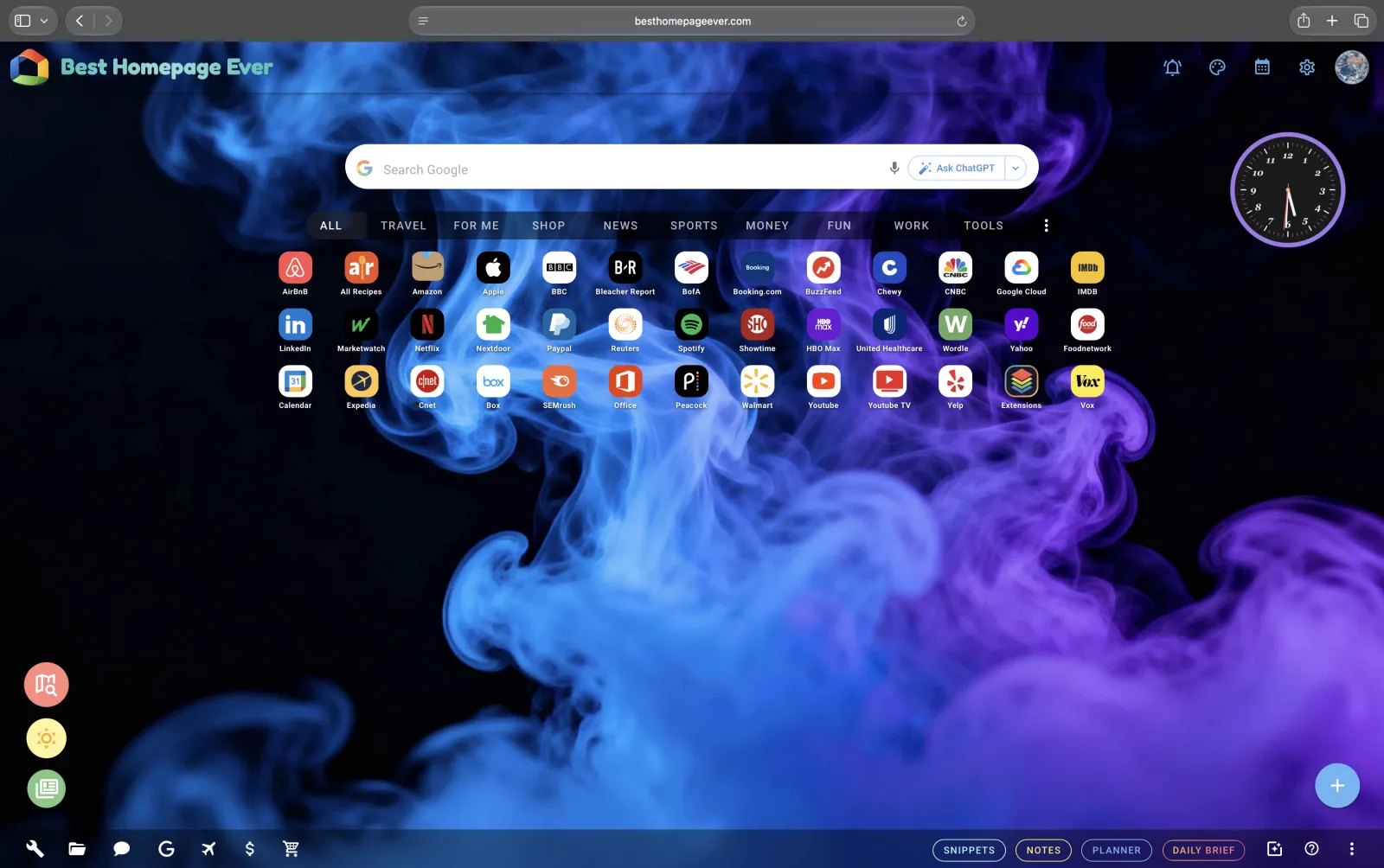
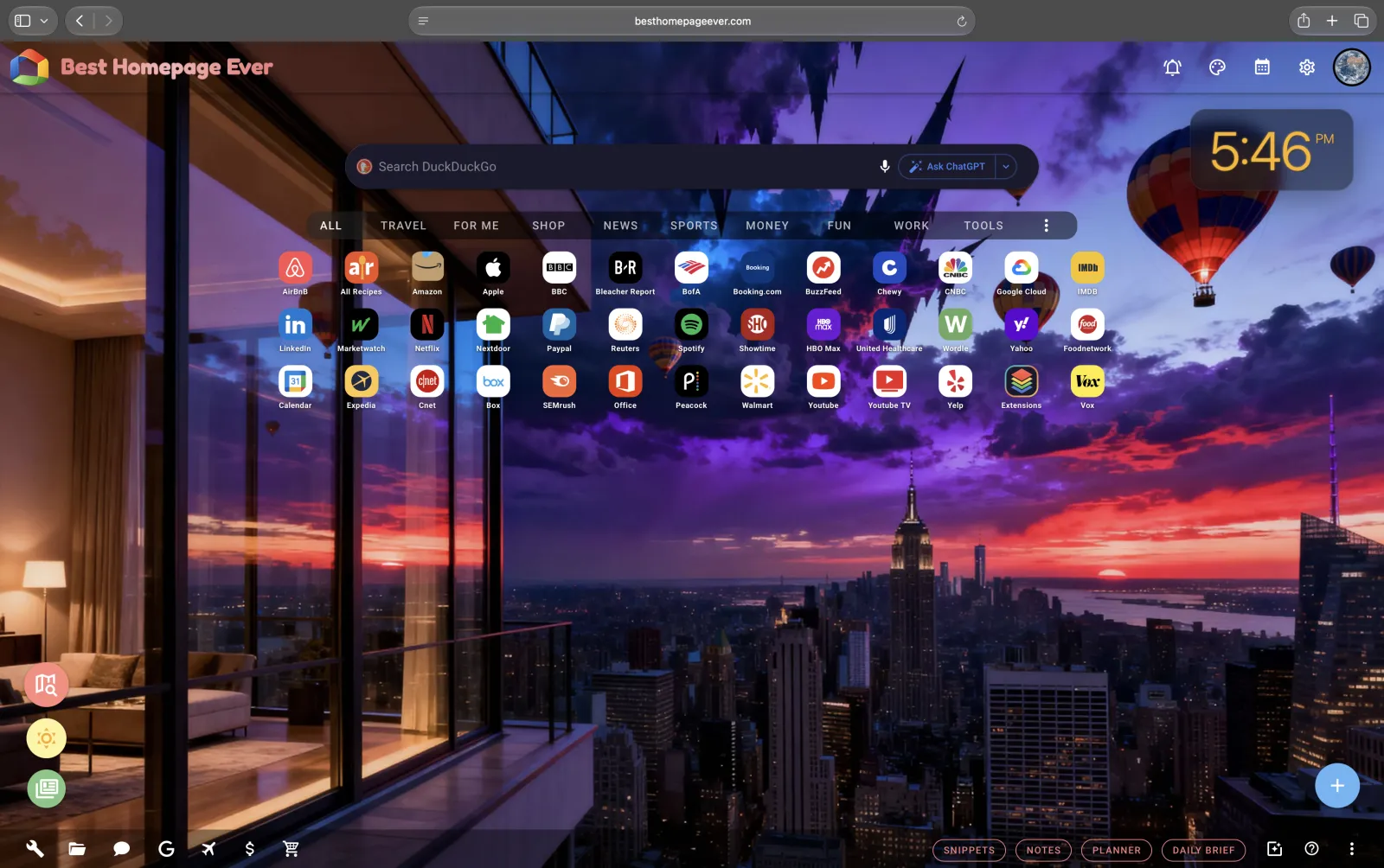
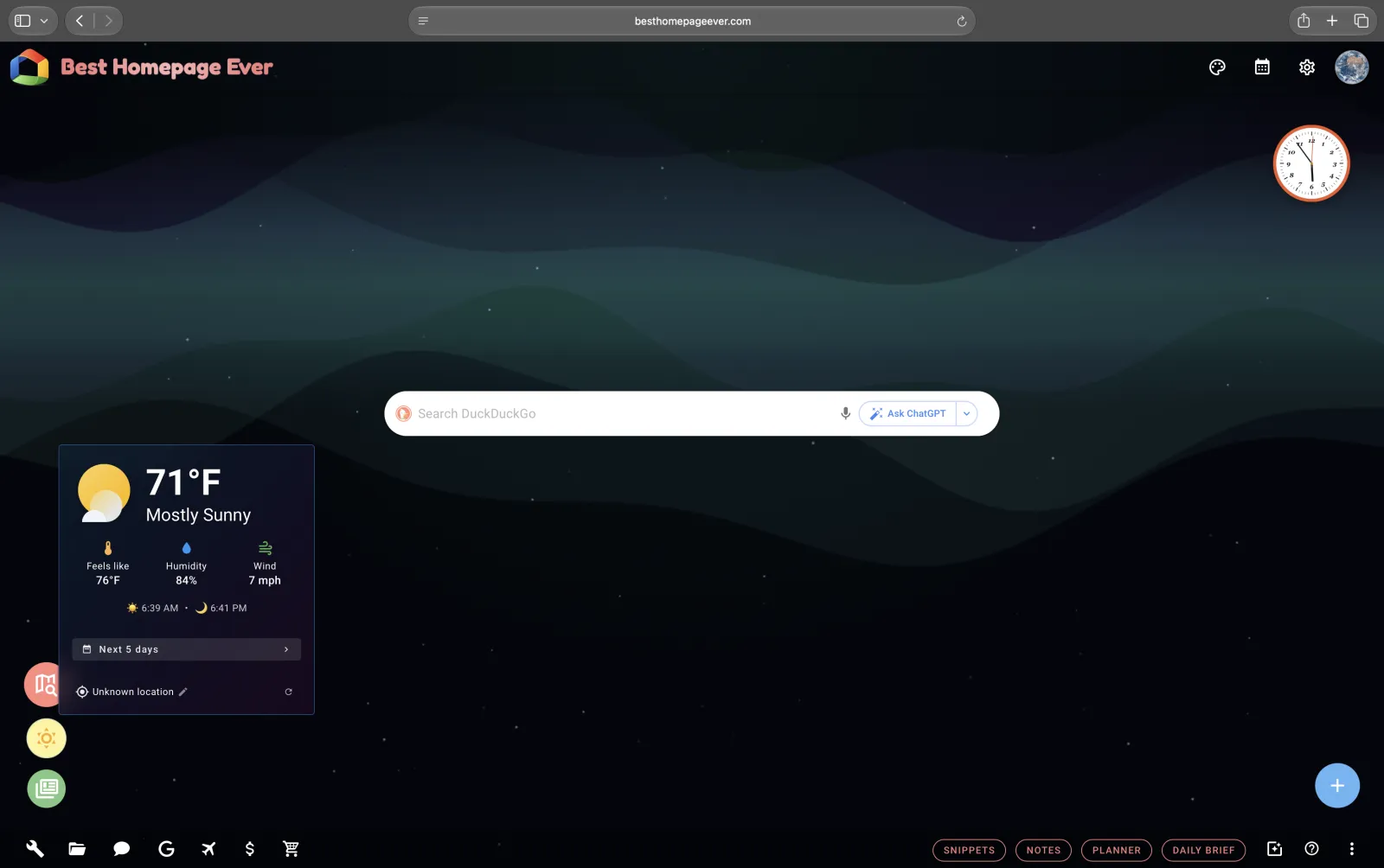
It won't replace Reading List or iCloud Tabs, and I won't pretend it does. It's for the part of browsing that happens before you know where you're going.
Try it in Safari
It's free, and you don't need an account to start. Your links save in the browser. Create an account if you want the same page on your other devices.
Frequently Asked Questions
What is Safari's default homepage?
Out of the box, new windows and new tabs in Safari show the Start Page, Apple's built-in page with your Favorites, Privacy Report, and Reading List. The separate Homepage field on a Mac points to https://www.apple.com/startpage/ until you change it.
Does Safari have a Home button?
On a Mac, yes, but it's hidden. Choose View › Customize Toolbar and drag the Home button onto the toolbar, or press Shift-Command-H to jump to your homepage. Safari on iPhone and iPad has no Home button, because it has no homepage setting.
How do I make Google my homepage in Safari?
On a Mac, open Safari › Settings › General, type https://www.google.com in the Homepage field, and set both New windows open with and New tabs open with to Homepage. The same steps work for any site.
Why does my Safari homepage keep changing?
Usually an extension changed it. Open Safari › Settings › Extensions, turn off anything you don't recognize, and set your homepage again. If the settings are greyed out, your Mac is managed by an employer or school.
What is a good minimalist homepage for Safari?
The most minimal option is built in: set New tabs open with to Empty Page. If you like the Start Page's look, turn off every section except the background. On my homepage, Hover Mode takes the website grid off the page and leaves the search bar over your background; your sites appear when you hover over the far left side.
Is Best Homepage Ever free?
Yes. It's free, there are no ads on it, and you don't need an account to start. Your links save in the browser, and an account is only needed if you want the same setup on your other devices.