Themes bundle your background, clock, icon colors, and more into one-click looks, and you can save up to five of your own, so a bright day theme and a calm night theme are always a single click apart.
Hey all,
I added themes so you don't have to dig through a dozen settings to make your homepage look great. Click one and your background, clock, icon colors, and more all change together. If you like it, keep it. If you don't, one click puts everything back.
Below I'll walk through how themes work, how to make them your own, and how to save up to five of your own looks, so you can flip between, say, a bright daytime theme and a dark nighttime one whenever the mood strikes.
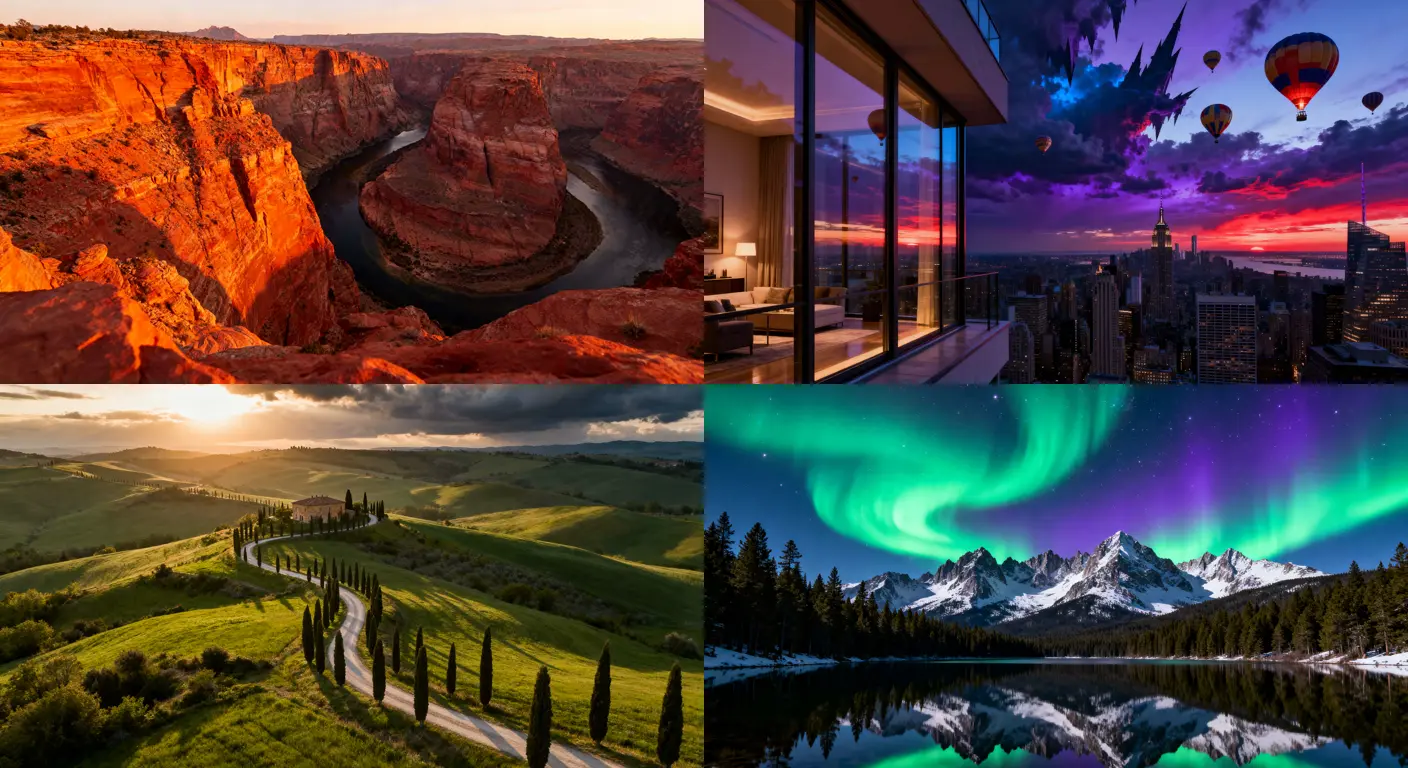
What is a theme?
A whole new look in one click, without losing a thing.
A theme is a curated bundle of aesthetic settings: the background, the clock style and color, your icon colors, the search field background, the logo color, and your notes style, all chosen to work together. Applying one paints the whole look onto your homepage at once.
Importantly, a theme is a starting point, not a lock. After you apply one, every individual setting still works exactly as before, so you're free to keep tweaking from there.
Applying, reverting, and customizing
Open the Appearance menu by clicking the moon icon in the top navigation bar. The Themes row at the top shows a swatch for each look.
Apply
Click any swatch and your homepage restyles instantly.
Tweak
Change anything you like afterward (a different clock color, your own background). The label updates to "Customized from …" to show you've made it your own.
Revert
Click Revert back to restore the look you had before you ever applied a theme. I snapshot your original settings the first time you try a theme, so Revert back always brings you home, even after trying several.
Saving your own themes
Dial in a look you love, then keep it forever; you can save up to five.
Once you've dialed in a look you love, whether you started from one of my themes or built it from scratch, you can keep it. Under My Custom Themes, click Save New Theme, give it a name, and it becomes its own swatch you can re-apply any time. You can save up to 5. Already saved a look and later changed a detail? With that theme active, click Update Theme to save the tweak back into it; no extra slot used.
This is where it gets fun. A lot of people keep a day theme and a night theme: a bright, airy look for the morning and a dark, calm one for the evening, switched in a single click. Or save a focused, minimal look for work and a vivid one for the weekend.
Get your homepage looking exactly how you want it.
Open the Appearance menu and, under My Custom Themes, click Save New Theme.
Name it (e.g. "Night") and save. To switch later, just click its swatch. To remove one, hover it and click the ×.
Icon colors
Everything shares one palette, so your look stays coordinated.
Below the themes is the Icon Colors palette. Pick a color and your navigation icons take it on. The Sync Top/Bottom Icons toggle keeps your top (navbar) and bottom (footer) icons the same color; turn it off to color them independently.
These colors are shared with the clock and logo pickers, so everything stays coordinated as you experiment.
Productivity buttons
Two small toggles that change how your footer buttons feel.
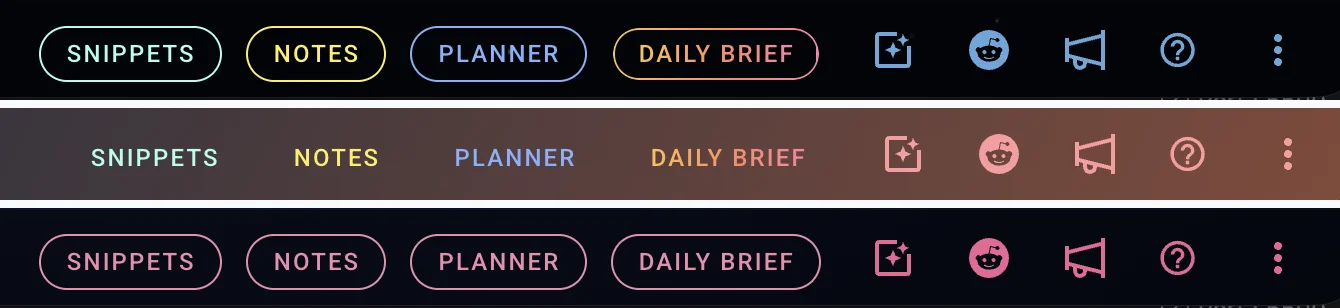
The Productivity Buttons section controls the look of the Snippets, Notes, and Planner buttons in your footer:
- Outline Productivity Buttons shows a rounded outline; turn it off for a clean text-only look.
- Replace Productivity Button Colors gives all three a single custom color instead of their default colors.
Frequently Asked Questions
Does applying a theme delete my current settings?
No. I snapshot your look before the first theme is applied, so Revert back always restores what you had, even after trying several themes.
What happens if I edit a theme?
Your changes save to your own settings and the label reads "Customized from …". The original theme isn't changed. If you want to keep your edited version you have two choices. If it's already one of your own saved themes, click Update Theme to save the changes back into it in place. Otherwise click Save New Theme to keep it as a separate look.
How many themes can I save?
Up to 5. They're tied to your account, so they follow you across devices when you're signed in.
Can I still use my own photo?
Absolutely. Themes set a starting background, but you can always swap in your own, including the animated video backgrounds or an AI-generated background.
Go try one on
That's it. Pick a theme you love, make it yours, and save a couple of looks to switch between. I hope you have fun with it.