How to Change Your Homepage in Any Browser
Updated for 2026 — Simple step-by-step instructions with screenshots



Select Your Browser
Chrome
Firefox
Safari
Edge
Opera
Google Chrome
1 Open Settings
Click the three-dot menu () in the upper-right corner, then select Settings.
2 Set Your Startup Page
In the left column, click On Startup, then select Open a specific page or set of pages.

3 Add Your Homepage URL
Click Add a new page and enter your homepage URL:
4 (Optional) Show Home Button
Go to Appearance and toggle on Show home button. Enter the same URL there.

Mozilla Firefox
1 Open Settings
Click the menu icon () in the upper-right corner, then select Settings.
2 Go to Home Settings
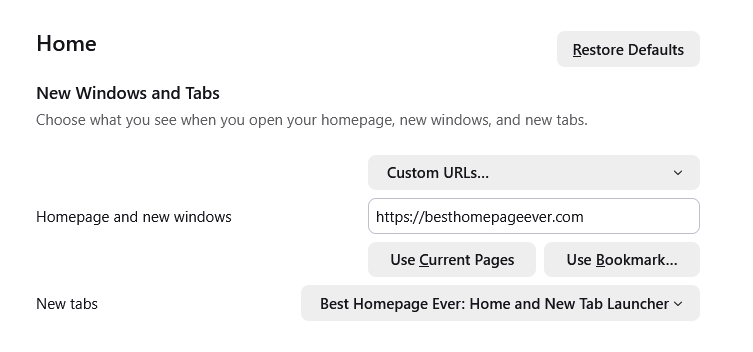
Click Home in the left sidebar, then find the New Windows and Tabs section.
3 Enter Your Homepage URL
Next to Homepage and new windows, select Custom URLs and paste:

Want your homepage in new tabs too?
Install the free Best Homepage Ever extension to open your homepage every time you open a new tab.
Apple Safari
1 Open Preferences
Click Safari in the menu bar, then select Preferences (or press Cmd + ,).

2 Set Your Homepage
In the General tab, find the Homepage field and enter:

3 (Optional) New Tabs
Set New tabs open with to Homepage if you want new tabs to also show your homepage.
Microsoft Edge
1 Open Settings
Click the three-dot menu () in the upper-right corner, then select Settings.
2 Configure Startup
Click Start, home, and new tabs in the left menu. Under When Edge starts, select Open these pages.
3 Add Your Homepage
Click Add a new page and enter:

4 (Optional) Home Button
Toggle on Show home button and enter the same URL to add a home button to your toolbar.
Opera / Opera GX
1 Open Settings
Press Alt + P or click the Opera menu and select Settings.
2 Find Startup Settings
Scroll down to the On startup section at the bottom of Basic Settings.
3 Add Your Homepage
Select Open a specific page or set of pages, then click Add a new page:

Looking for a Better Homepage?
Try Best Homepage Ever — fast, customizable, and ad-free. Trusted by 25,000+ users.
Create Free Account